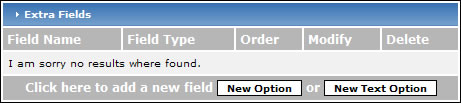
To create a new Single-line text, Multi-line text, or file upload field, click the "New Text Option" button.
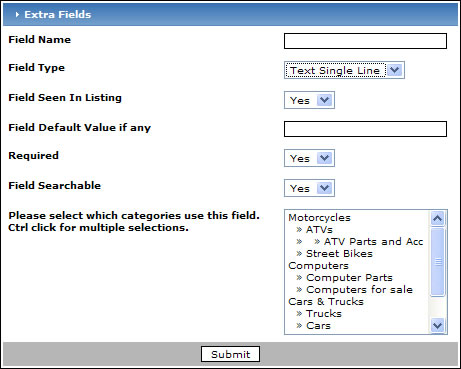
You will be forwarded to a page that lets you enter information about the field:
-
Field Name - enter a title for the field.
-
Field type - choose either "Text Single Line", "Text Multi Line", or "File Upload" depending on what type of field you would like to add.
-
Field seen in listing - If you would like the information to appear in an ad's listing, choose "Yes", otherwise choose "No". An example of a field listing that you may want to create but not show up on an ad's page may be a "How did you find us?" field. It will then show up when the customer registers but won't show up in the customer's listing.
-
Field Default Value if any - you can enter a few words to use as a prompt for your customer. This is optional.
-
Required - If you want to force your customer to provide information in the field, choose "Yes" otherwise choose "No". If nothing is entered in the field, a warning message will pop up warning the customer of the requirement.
-
Field Searchable - If you would like the field to be included in searches, choose "Yes" otherwise choose "No".
-
Range - If you have selected the field to be searchable and it is a number field then you can assign a range to the search page. It works by creating two select boxes both start at the min value and go the max value. It increments by the step value you enter.
-
Please select which categories use this field - When you create a field, you may want to associate the field with a few of your categories. Select which categories this field will be assigned to here. Hold down your "Ctrl" key to select multiple categories.