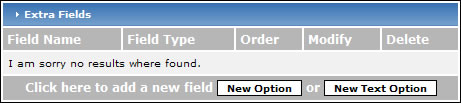
To create a new drop-down list, click the "New Option" button.
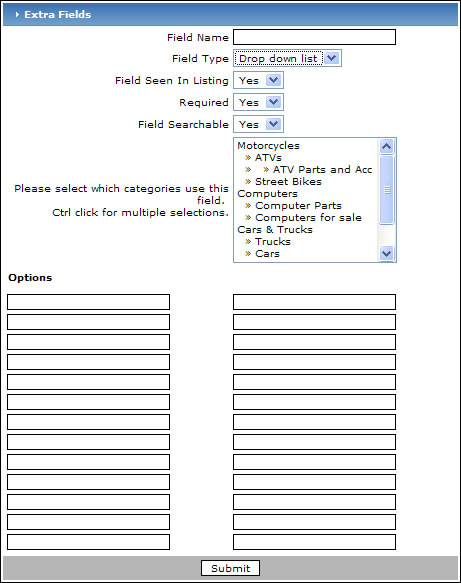
You will be forwarded to a page that lets you enter information about the field:
-
Field Name - enter a title for the field.
-
Field type - choose either "Drop down list" or "Checkboxes" depending on what type of field you would like to add.
-
Field seen in listing - If you would like the information to appear in an ad's listing, choose "Yes", otherwise choose "No". An example of a field listing that you may want to create but not show up on an ad's page may be a "How did you find us?" field. It will then show up when the customer registers but won't show up in the customer's listing.
-
Required - If you want to force your customer to provide information in the field, choose "Yes" otherwise choose "No". If nothing is entered in the field, a warning message will pop up warning the customer of the requirement.
-
Field Searchable - If you would like the field to be included in searches, choose "Yes" otherwise choose "No".
-
Please select which categories use this field - When you create a field, you may want to associate the field with a few of your categories. Select which categories this field will be assigned to here. Hold down your "Ctrl" key to select multiple categories.