
|
|
|
Authorize.net SIM - Click here to setup an account for Authorize.net account
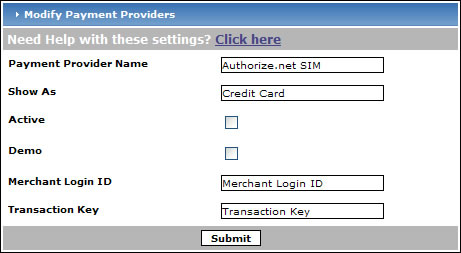
Payment Provider Name - Enter the name of the payment provider here.
Show As - If you have multiple forms of payment setup, your customers will have a choice as to which method they prefer. Enter the value you would like your customers to see such as "Credit Card", "Paypal" or "Mastercard, Visa" (without the quotes.)
Active - Place a check in the box to make this payment provider active. If this box is not checked, the payment provider will not show up in the payment provider list during checkout.
Demo - If you would like to test the payment provider settings, place a check in the "Demo" box.
Merchant Login ID - Enter your Authorize.net Merchant ID here.
Transaction Key - Enter your transaction key here.
Press the "Submit" button to save your changes.
(The following is from Authorize.net's site)
To obtain a transaction key: