
|
|
|
The Listing Packages area is where you will create the ad packages that you offer to your customers. 68 Classifieds comes with three ad packages already created which you can use as they are, modify or delete. You can also create additional ad packages by clicking on the "Add New" button.
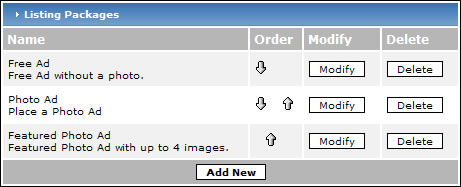
The main page of the Listing packages shows your existing packages in the first column.
In the second column of the table, you have up and down arrows that let you rearrange the way the packages are displayed to your customers. To move an ad package higher in the list, just click on the corresponding "Up" arrow and the package will move one position up the list. Use the same method to move packages down. Continue with this method until the ad package list is in the order you would like to use.
The third column contains a "Modify" button that forwards you to a page that lets you change the packages features.
The fourth column contains a "Delete" button that will delete the package. You will be asked to confirm the deletion.
Modifying or creating a package
To modify a package, click on the corresponding "Modify" button on the main page of the Listing Packages area. To create a new Listing Package, click on the "Add New" button on the main Listing Packages page. A new page will load in your browser. If you choose to modify an ad, the form will be pre-populated with the ad's details. If you're creating a new package, the form will be blank.
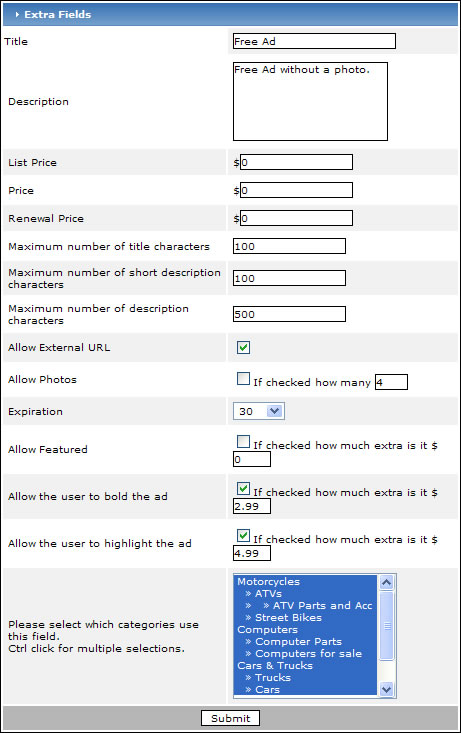
Title - Enter the name for your package.
Description - Enter a description for your package.
List Price - Enter a "Suggested Retail Price" or the "Regular Price" (if you're running a sale). The value in this field will be "striked out" and is mainly used as a marketing tool. Entering a value is not required.
Price - This is the actual price that the ad package costs.
Renewal Price - You can set up your site so that your customers are emailed a notification of pending expiration. Enter the price that you would like your customer to be charged for renewing their ad here.
Maximum number of title characters - Enter the maximum number of characters a customer's ad title can contain.
Maximum number of short description characters - Enter the maximum number of characters a customer's ad's short description can contain.
Maximum number of description characters - Enter the maximum number of characters a customer's ad's long description can contain.
Allow External URL - If you would like to allow your customers to enter a link to another site within their ad, place a check in the "Allow External URL" box.
Allow Photos - Place a check in the "Allow Photos" box if you want to give your customers the ability to upload photos. If you are allowing photos with this package, enter the maximum number of photos your customer can upload in the adjoining textbox.
Expiration - Select the number of days this package will display your customers ad before expiring.
Allow Featured - when the customer is placing an ad, you can give them the opportunity to designate the ad as "featured" by placing a check in the box. A featured ad will stand out from normal ads as designated by your template's stylesheet. The ad will also be included in the "Featured Ads" area on your site. Enter the amount you would like to charge when the customer chooses to make the ad featured.
Allow the user to bold the ad - when the customer is placing an ad, you can give them the opportunity to designate the ad as "bold" by placing a check in the box. A bold ad will stand out from normal ads as designated by your template's stylesheet. Enter the amount you would like to charge when the customer chooses to make the ad bold.
Allow the user to highlight the ad - when the customer is placing an ad, you can give them the opportunity to designate the ad as "highlighted" by placing a check in the box. A higlighted ad will stand out from normal ads as designated by your template's stylesheet. Enter the amount you would like to charge when the customer chooses to make the ad highlighted.
Please select which categories use this field. - When a customer decides to place an ad at your site, their first step is to choose the category where their ad will appear. You can designate which ad categories use the listing package here. To choose multiple categories, use the "Ctrl+click" method (hold down the CTRL key while choosing the categories the package is associated with).